7 Best UI UX Design Tools for Designers and Agencies
 7 min read
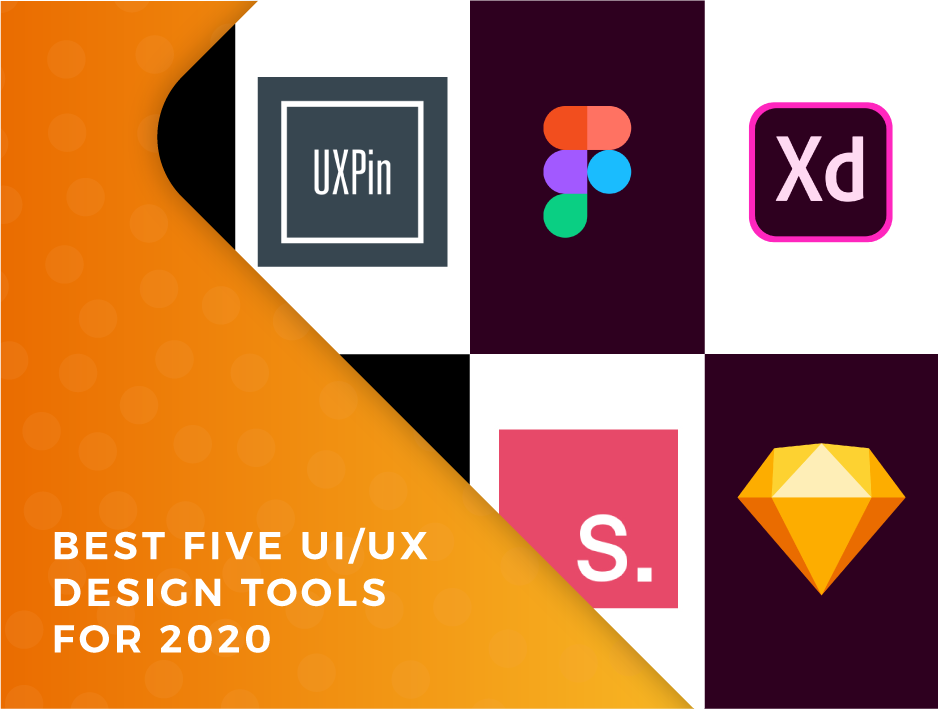
The right UI UX design tools take an idea from rough sketch to clickable, testable product without redoing the same work three times. UI design covers how a product looks: colour, type, spacing and components. UX design covers how it works: flows, structure and how easy it is to use. Good interface work also supports digital branding, because every screen shapes how people remember a company.
This guide compares seven tools that designers and agencies use today, says what each one does best and explains how to choose between them. We also cover what happened to Adobe XD and InVision, two names that appeared in earlier versions of this list.
UI and UX design: what your tools need to cover
People often mix up UI and UX, so it helps to separate them before you pick software. A UI designer works on the visual layer: the colour palette, typography, buttons, icons and the size of every component. A UX designer works on the experience: who the users are, what they are trying to do, which screens they need and in what order.
Years ago many designers built screens in Photoshop, which was made for photos, not interfaces. Dedicated tools replaced it because they work with vectors, reusable components and clickable prototypes. Whatever you choose, your tools should cover five jobs:
- Design: layouts, components and styles that can be reused across screens.
- Prototyping: linking screens so a client or tester can click through them.
- Collaboration: shared files, comments and libraries for the whole team.
- Testing: putting the prototype in front of real people to see where they struggle.
- Handoff: giving developers measurements, assets and clear specs.
No single product is the best at all five. Most teams pair one main design tool with a testing or advanced prototyping tool.
How to choose UI UX design tools
Start with your own situation, not with the longest feature list. These questions narrow the field quickly:
- What systems does the team use? A mix of Windows, Mac and Linux points to a browser-based tool. A Mac-only studio has more options.
- How much do you collaborate? If clients and developers comment on files, real-time editing and shared libraries matter more than advanced animation.
- How deep must prototypes go? A simple click-through is enough for most websites. Apps with gestures, logic or voice need more.
- How do developers get the specs? Look for inspect panels, exportable assets and variables that map to design tokens in code.
- What will it cost per seat? Check free plans and per-editor pricing on the vendor’s own page before you commit a whole team.
- Can you leave? Adobe XD and InVision both showed that a tool can stop moving forward or disappear. Keep exports of important files and prefer tools that use open formats such as SVG.
Then test your shortlist on one real, small project. Two days in a tool teaches you more than any comparison article.
Four design tools for everyday UI work
1. Figma
Figma is the default choice for most teams. It runs in the browser and also has desktop apps, so a designer on Windows, a developer on Linux and a client on a tablet can open the same file. Real-time editing, shared component libraries, auto layout, variables and built-in prototyping cover most UI work, and Dev Mode gives developers measurements and code hints. A free plan lets you learn the basics before you pay. Best for teams of any size, design systems and client reviews.
2. Framer
Framer began as a prototyping tool and is now a design and publishing platform for websites. You design on a canvas, add animations and interactions, then publish the result as a live site with hosting and a CMS built in. That removes the handoff step for marketing sites and landing pages. The catch is that the design is the website, so it suits small teams better than product teams with a separate codebase. Best for marketing sites, portfolios and landing pages.
3. Penpot
Penpot is the open-source option. It runs in the browser, you can use the hosted version or run it on your own server, and it is built on open web standards such as SVG, so your files are not tied to one vendor. It offers components, flex and grid layout, prototyping and inspect options for developers. The feature set is smaller than Figma’s, but it is a serious choice for teams that care about cost, privacy or ownership. Best for open-source fans and agencies with data-handling rules.
4. Sketch
Sketch is a long-standing standard for UI design. The editor is a native Mac app, which feels fast and focused, and the web app lets teammates on any system view, comment on and inspect designs. It has symbols, shared libraries and prototyping. If your whole team uses Macs, it is still a good fit. If you work with Windows users, Figma or Penpot is easier. Best for Mac-based designers and studios.
Three tools for advanced prototyping and testing
5. ProtoPie
ProtoPie is for prototypes that need to feel real. You can build logic, conditions, variables and responses to device sensors, then test on an actual phone. Designs usually come in from tools such as Figma or Sketch. Use it when a simple click-through cannot show how a gesture, animation or voice interaction should behave. It is more than you need for a basic brochure site. Best for app interactions and motion.
6. UXPin
UXPin focuses on prototypes that behave like the finished product, with states, variables and conditional logic. Its Merge technology lets teams design with real coded components, so design and code stay closer together. That suits larger product teams that already maintain a component library. For a small studio it can feel heavier than Figma. Best for product teams with a coded design system.
7. Maze
Maze is not a drawing tool. It tests designs with real users. You bring in a prototype from a tool such as Figma, set tasks, share a link and collect results such as whether people completed the task and where they clicked. It also supports surveys and written feedback. Run it before handoff, while changes are still cheap. Best for usability testing without a lab.
What happened to Adobe XD and InVision?
Adobe XD is in maintenance mode. Adobe has said it fixes bugs and handles security and privacy updates for existing customers but is not shipping new features. You can still open and export XD files, but we would not start a new project in it. If you have old XD files, export what you need while the app still works and move active projects to another tool. Our free Adobe XD wireframe kits are still online for anyone who works in XD.
InVision Studio, which featured in an earlier version of this article, no longer exists. InVision shut down its design and collaboration services, so look at the tools above instead.
How to get more from your UI UX design tools
- Wireframe first. Sketch the structure before you pick colours. Our guide to wireframes in web design explains why this saves time.
- Build components early. Buttons, inputs, cards and navigation should be reusable from day one, so one change updates every screen.
- Set a clear hierarchy. Size, weight and spacing tell people what to read first. See visual hierarchy for the basics.
- Check contrast and text size. Low-contrast grey text looks neat in a design file and fails real users. Test colour pairs before you build.
- Prototype only what you need to test. A prototype of the key flow, such as sign-up or checkout, is worth more than a clickable version of every screen.
- Test with a handful of people early. Even five users will show you the biggest problems, and fixing them in a design file costs far less than fixing them in code.
- Hand off with notes. Name layers clearly, document states such as hover and error, and tell developers what is flexible. Our web design process guide covers the full sequence.
If you design for phones, read our mobile app design tips. When it is time to present, mockups help clients picture the finished product. For a longer checklist, see the 5 rules of web design every project needs. You can also see how our team works on the design services page.
Frequently asked questions
Which UI UX design tool is best for beginners?
Figma is the easiest place to start. It runs in the browser, has a free plan and has plenty of tutorials. Penpot is a good free alternative if you want open source.
Is Adobe XD still worth using?
For new work, no. Adobe has put XD in maintenance mode, which means bug and security fixes but no new features. Use it only to open old files, and move active projects to a tool that is still developing.
Do I need separate tools for UI and UX?
Not always. One design tool such as Figma can handle UI design, wireframes and flows. Many teams add a testing tool such as Maze for user research and an advanced prototyping tool such as ProtoPie when interactions are complex.
What is the difference between a wireframe, a mockup and a prototype?
A wireframe shows structure and layout with no styling. A mockup adds colour, type and imagery so it looks like the final design. A prototype links screens so people can click through and try the flow.
Need UI design for a client project?
Inkyy is a white label design and development team for agencies. Our in-house designers create UI and UX that you present under your own brand. See our design services or book a 15-minute call.